Add Temporal Acceleration
AprilTag detection spends most of its time scanning parts of the image where there are no tags. The Temporal Acceleration Preprocessor Rust node uses the last known camera pose and the tag map to predict where tags should be in the next frame, and hands the detector only those regions.
This is the single biggest frame rate improvement available, but it needs a feedback edge: the pose comes out of PnP and goes back into the preprocessor.
The graph you are building
Device Input ──frame──► Temporal Acceleration ──processed_frame──► Detect AprilTags
                              ▲                                          │ detections
                              │ camera_pose (default edge, dashed)       ▼
                              │                              Minimum AprilTag Count
                              │                                          │
                              └──────────────────────────────  PnP Camera Localization
The rest of the pipeline from PnP onward is unchanged from Build an AprilTag Pipeline.
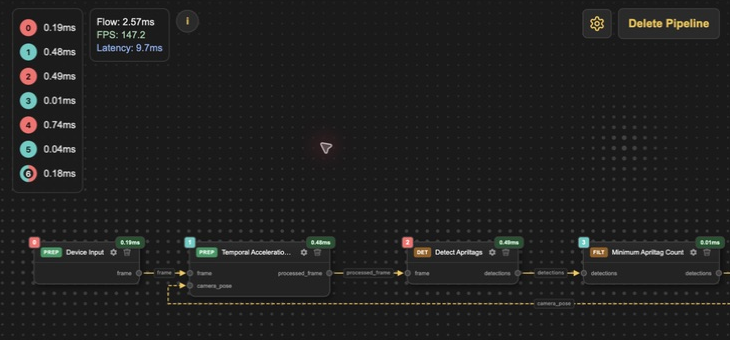
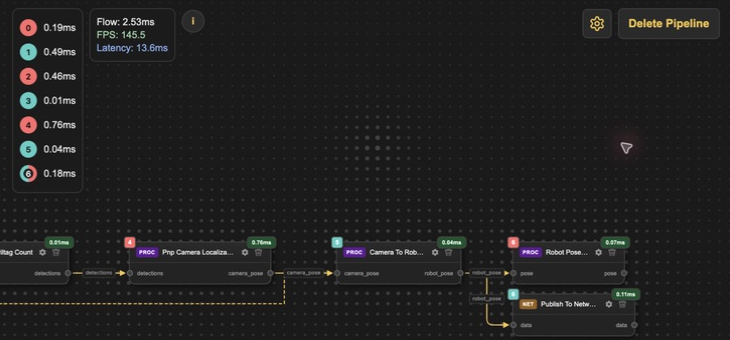
The two close views below show the running graph at a readable scale. The dashed
camera_pose line is the previous-frame feedback path.
1. Insert the node
- Open your pipeline in the Pipeline tab.
- Drag Temporal Acceleration Preprocessor Rust onto the canvas, between Device Input and Detect AprilTags.
- Delete the existing
Device Input.frame → Detect AprilTags.frameconnection. - Connect
Device Input.frame→Temporal Acceleration.frame. - Connect
Temporal Acceleration.processed_frame→Detect AprilTags.frame.
2. Configure it
| Setting | Starting value | Notes |
|---|---|---|
camera_bus_id | your camera | Must match Device Input |
apriltag_map_path | room.fmap | Use the same uploaded map as PnP |
padding_factor | 0.35 | Extra margin around each predicted region. Higher means more tolerance for motion and less speedup |
max_regions | 20 | Most regions considered per frame |
min_region_size_px | 16 | Regions smaller than this are skipped |
max_detection_distance_m | 0.0 | Skip tags farther than this from the camera. 0 disables the limit |
Like PnP, this node loads the camera's intrinsics at startup and will not run without them. Click the node's gear button to open its settings. The live view on the right shows the frame being passed to the detector, so you can see whether the predicted regions still contain the tags while you tune the operation.
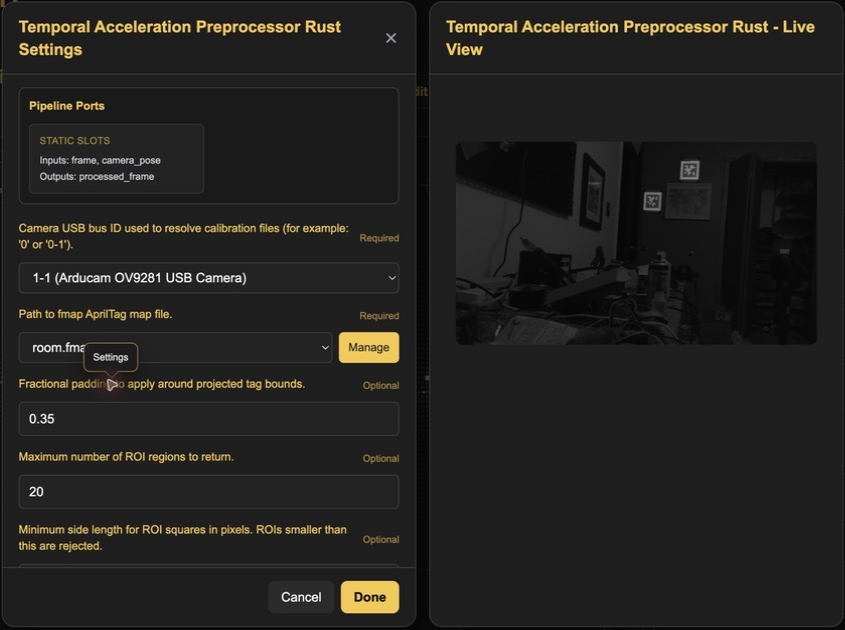
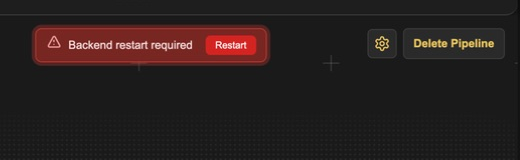
Most numeric settings apply to the running operation as soon as you click Done. Camera and map changes rebuild resources used by the operation, so those fields are marked as requiring a backend restart. The Pipeline tab shows a red Backend restart required banner only when the saved change needs one.
3. Add the feedback edge
Connect PnP Camera Localization.camera_pose → Temporal Acceleration.camera_pose.
The connection is drawn back across the canvas. You can drag waypoints on the edge to route it somewhere readable. This only changes its appearance.
4. Mark the feedback edge as default
This step is required. Without it the pipeline contains a loop, and the editor and backend treat it as a cycle rather than as feedback.
- Right-click the
camera_poseconnection you just made. - Choose Set as Default Connection.
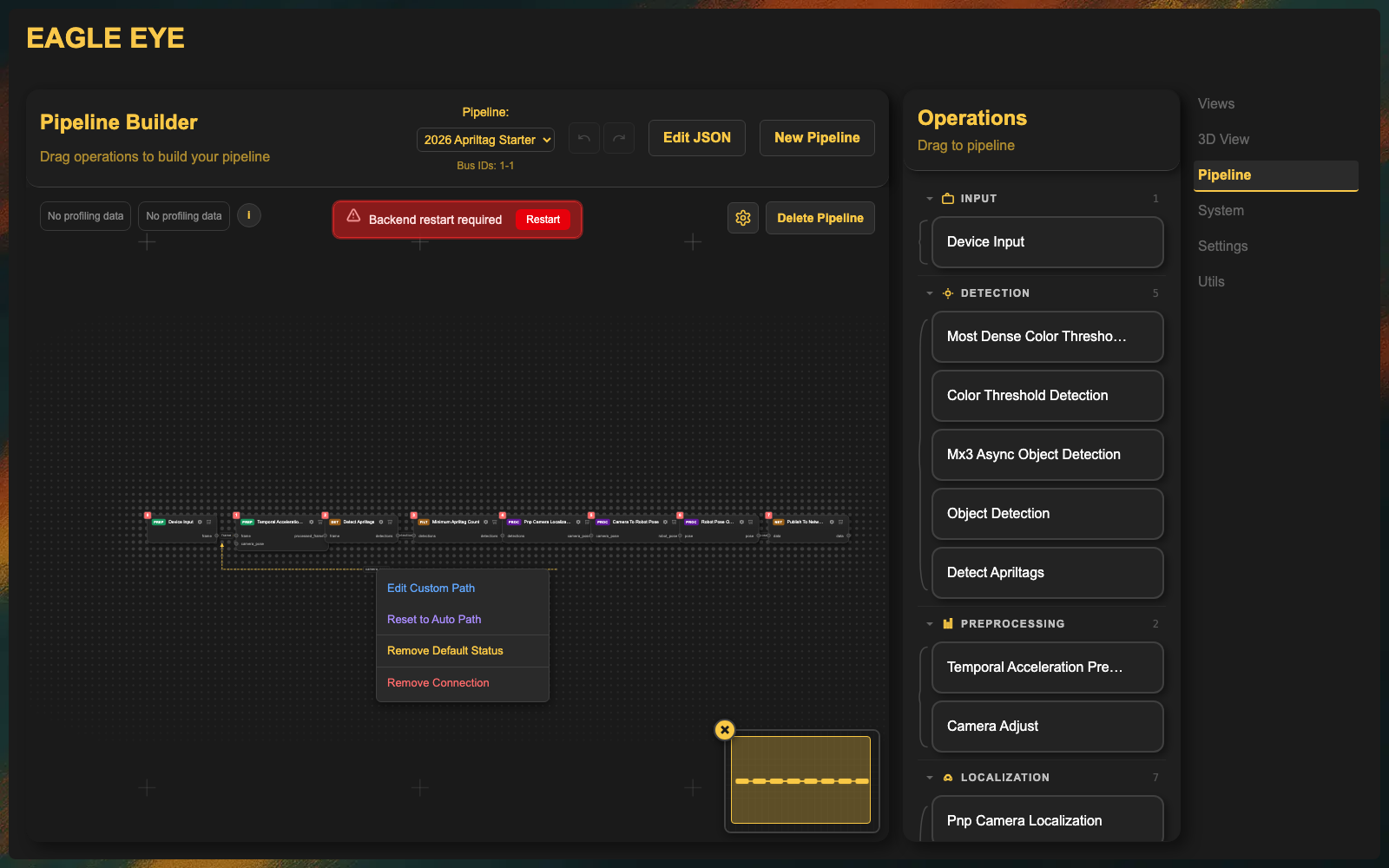
Expected result: the connection is redrawn as a dashed line, and the same menu item now reads Remove Default Status.
A default connection is excluded from the execution-order and cycle calculations. It delivers the previous cycle's value instead of forcing PnP to run before the preprocessor. That is exactly what a feedback edge needs.
If the menu item reads Cannot Set Default, the target port does not accept a default
connection. Confirm you right-clicked the camera_pose edge going into the preprocessor and
not one of PnP's other outputs.
5. Verify
- Open the System tab and confirm the pipeline is active.
- Point the camera at tags and check that pose still updates in the 3D View.
- Move the camera slowly, then make a faster turn while watching whether detections continue.
Expected result: the pipeline keeps detecting tags while the predicted regions follow the camera motion.
If fast motion moves tags outside the predicted regions, raise padding_factor toward 0.65 or higher. If the pipeline keeps searching stale regions after losing pose, temporarily remove the temporal node from the frame path to reacquire tags across the full image.
Troubleshooting
The feedback must carry PnP's camera pose, before camera-to-robot mounting compensation. Robot Pose3d output and the centered Three.js display matrix are different contracts and must not be connected to this input. Both PnP and the preprocessor must use the same map, camera calibration, image resolution, and image rotation.
If pose jitters while the camera is stationary, compare full-frame and cropped detections on the same images. Check whether the predicted regions actually exclude tag corners. If individual-tag solves agree with measured distance/tilt but the multi-tag solve does not, measure the map's tag-center spacing, tag orientation, and black-square size before changing coordinate signs or adding smoothing. A wrong map can produce a plausible but unstable compromise pose and misleading crop predictions.
| Symptom | Likely cause | Fix |
|---|---|---|
| Pipeline will not start after adding the node | No intrinsics for camera_bus_id, or a bus ID typo | Calibrate intrinsics; check the bus ID matches Device Input |
| Editor flags a cycle | Feedback edge is not marked default | Right-click it → Set as Default Connection, confirm it turns dashed |
| Tags drop out during fast motion | Predicted regions are too tight | Raise padding_factor |
| No speedup | Node not actually in the path, or max_regions very high | Confirm Detect AprilTags reads processed_frame, and lower max_regions |
| Distant tags disappear | max_detection_distance_m set too low | Set it to 0 to disable the limit |
Next: Verify and Tune.
Verified against EagleEye-Vision-System main at commit c73a871 (2026-08-20).