Connect to Wi-Fi from a Robot Network
The installer needs internet access to download packages. If entering Wi-Fi details in Raspberry Pi Imager is inconvenient, use the robot network for the first SSH connection, then join an internet-connected Wi-Fi network or phone hotspot from the Pi.
1. Reach the Pi over the robot network
- Connect the Pi's Ethernet port to the robot radio or network switch.
- Connect your laptop to the same robot network.
- Power on the Pi and wait about 60 seconds.
- Find the Pi in the radio's client list, or try its hostname:
ssh <username>@<hostname>.local
If the hostname does not resolve, use the Ethernet IP shown by the radio:
ssh <username>@<ethernet-ip>
Expected result: you get a shell prompt on the Pi while staying connected through Ethernet.
2. Join internet-connected Wi-Fi
Raspberry Pi OS Bookworm uses NetworkManager. From the SSH session:
nmcli radio wifi on
nmcli device wifi list
sudo nmcli --ask device wifi connect "<wifi-or-hotspot-name>"
--ask prompts for the password without saving it in your shell history.
Confirm that Wi-Fi has an address:
ip -4 address show wlan0
Expected result: wlan0 has an inet address.
3. Confirm the Pi uses Wi-Fi for internet access
curl -I https://github.com
If this returns HTTP headers, keep the Ethernet SSH session open and continue to Install EagleEye.
If it fails because the robot network remains the preferred internet route, give Wi-Fi a lower route metric:
wifi_connection="$(nmcli -g GENERAL.CONNECTION device show wlan0)"
sudo nmcli connection modify "$wifi_connection" ipv4.route-metric 50
sudo nmcli connection up "$wifi_connection"
curl -I https://github.com
You can also note the wlan0 address, move your laptop onto the same hotspot, unplug
Ethernet, and reconnect with ssh <username>@<wifi-ip>. Some phone hotspots isolate
connected devices; in that case, keep managing the Pi over Ethernet and use the route-metric
method above.
Next: Install EagleEye.
Connect from the web UI after installation
Once EagleEye is running, you do not need SSH or nmcli to change Wi-Fi networks:
- Open the Settings tab from the navigation on the right.
- Find WiFi Networks under General and click Manage.
- Click Refresh if the network is missing.
- Find the network, enter its password, and click Connect.
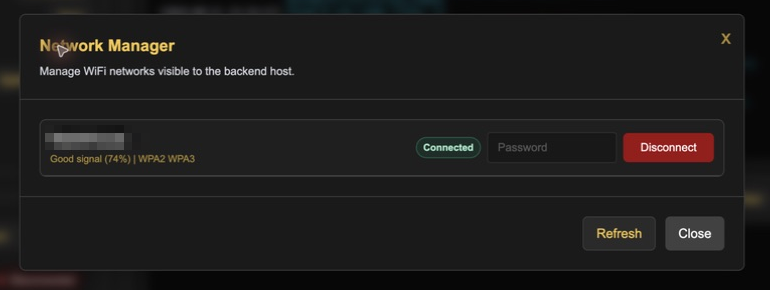
The active network has a green Connected label. Its action button changes to Disconnect. Keep Ethernet connected until the Wi-Fi row shows Connected, especially if the browser is using the Ethernet address.