Connect NetworkTables
EagleEye joins NetworkTables as a client named EagleEye. The roboRIO, or a simulation host, is the server. Every pipeline publisher writes below the fixed EagleEye table.
1. Point EagleEye at the roboRIO
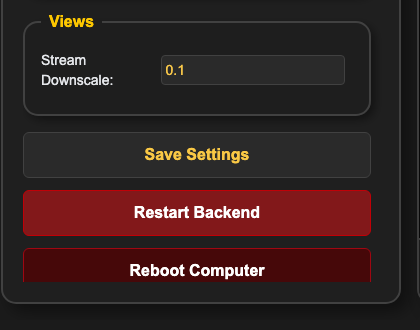
- Open Settings.
- Under Network Table, enter the robot address.
- Click Save Settings.
- Restart the backend.
| Address | Use |
|---|---|
10.TE.AM.2 | Normal robot network, such as 10.33.22.2 for team 3322 |
roborio-TEAM-frc.local | Robot network when mDNS is reliable |
172.22.11.2 | roboRIO over USB |
127.0.0.1 | Simulation server on the same computer |
| Simulation host LAN or Tailscale IP | Simulation on another computer reachable from EagleEye |
The status indicator beside the address should report a connection. If it does not, ping the roboRIO from the coprocessor and confirm robot code is running.
2. Use the localization contract
The bundled localization templates publish two timestamp-matched values. These use front
as the example source:
| Full topic | Type | Contents |
|---|---|---|
EagleEye/localization/front/pose | Pose3d struct | Robot pose in field coordinates |
EagleEye/localization/front/meta | double[3] | Tag count, mean tag distance in metres, and reprojection error in pixels |
Wizard-generated Localize and Both pipelines use the same /pose and /meta
contract, but replace front with a source derived from the hardware camera name, with a
suffix when needed. A placement description such as Front bumper does not become a topic
name. Later name edits in Settings → Camera Names leave publisher keys unchanged.
In Publish To NetworkTables, target_key is relative to the EagleEye table. Enter
localization/front/pose, not EagleEye/localization/front/pose. For a generated pipeline,
copy its actual pose and metadata target_key values into the Java constructor. See
Find your source keys.
Pose translation uses corner-origin NWU meters; yaw is counterclockwise-positive. Use the Java integration guide for estimator code and coordinate details.
The pose and metadata publishers must remain on single-input paths from the same PnP solve. EagleEye carries the capture timestamp through both paths, and the robot library joins the values by exact timestamp. Publishers retain unchanged values at new timestamps; stationary observations must still reach the robot.
Robot Pose Output updates the WebUI 3D view. Only Publish To NetworkTables writes to NetworkTables. The templates connect both independently so the 3D view cannot suppress repeated stationary poses from the robot.
3. Verify the topics
Use AdvantageScope, OutlineViewer, or your dashboard's NetworkTables viewer. With mapped tags visible, confirm both topics appear below EagleEye and update together. For wizard-generated
pipelines, use the exact keys listed in the final verification panel or inspect the publisher
nodes. Do not assume the source is front just because the camera's placement name says front.
If pose appears without metadata, EagleEyeCamera drops it because it cannot choose measurement uncertainty. If metadata appears without pose, check the Camera To Robot Pose connection and pose publisher.
Other publisher settings
| Setting | Meaning |
|---|---|
target_key | Key below the EagleEye table |
schema | WPILib type conversion. Use pose3d for the robot-library pose topic |
data_path | Optional path into structured input; leave empty to publish the whole value |
Unsupported values pass to downstream pipeline nodes but are not published.
Reading robot values in EagleEye
Get NetworkTables Value reads a robot key into a pipeline. One planned use is supplying gyro yaw to constrained PnP. The solver supports yaw input, but the shipped localization templates do not enable that connection yet.
Troubleshooting
| Symptom | Check |
|---|---|
| Status never connects | Robot address, network path, and whether robot code is running |
EagleEye table exists but keys do not | Pipeline state and Publish To NetworkTables nodes |
| Pose freezes while stationary | Check direct Camera To Robot Pose publishing and duplicate retention; inspect timestamps rather than position changes |
| Robot warns that a key is missing | Compare both Java constructor keys with publisher target_key values |
| Works over USB but not radio | Replace 172.22.11.2 with the normal team address |
Next: Build an AprilTag Pipeline, then Add EagleEye to robot code.